



Desktop app
Windows audio setting recommendations
Stop Windows from swapping Cradle's audio to the wrong device by disabling the playback and recording devices you don't actually use.
If Cradle's audio occasionally jumps to your laptop speakers, or your microphone switches to a device that isn't even plugged in, the cause is usually Windows having too many audio devices enabled at once. Trimming the list down to the ones you actually use makes the system predictable.
This guide targets Windows 10 and Windows 11.
Before you start
Decide which device you want for each of three roles:
- Ringtone. Plays the incoming-call sound. Usually your laptop's built-in speakers, so you hear the ring when the headset is off your head.
- Speaker (call audio). What you hear during the call. Usually your headset.
- Microphone. What the caller hears. Usually your headset.
If your headset has a built-in ringer (some Jabra Engage and Pro models do, and any Speak series speakerphone does), you can skip the laptop-speaker step and use the headset for everything.
Disable everything you don't need
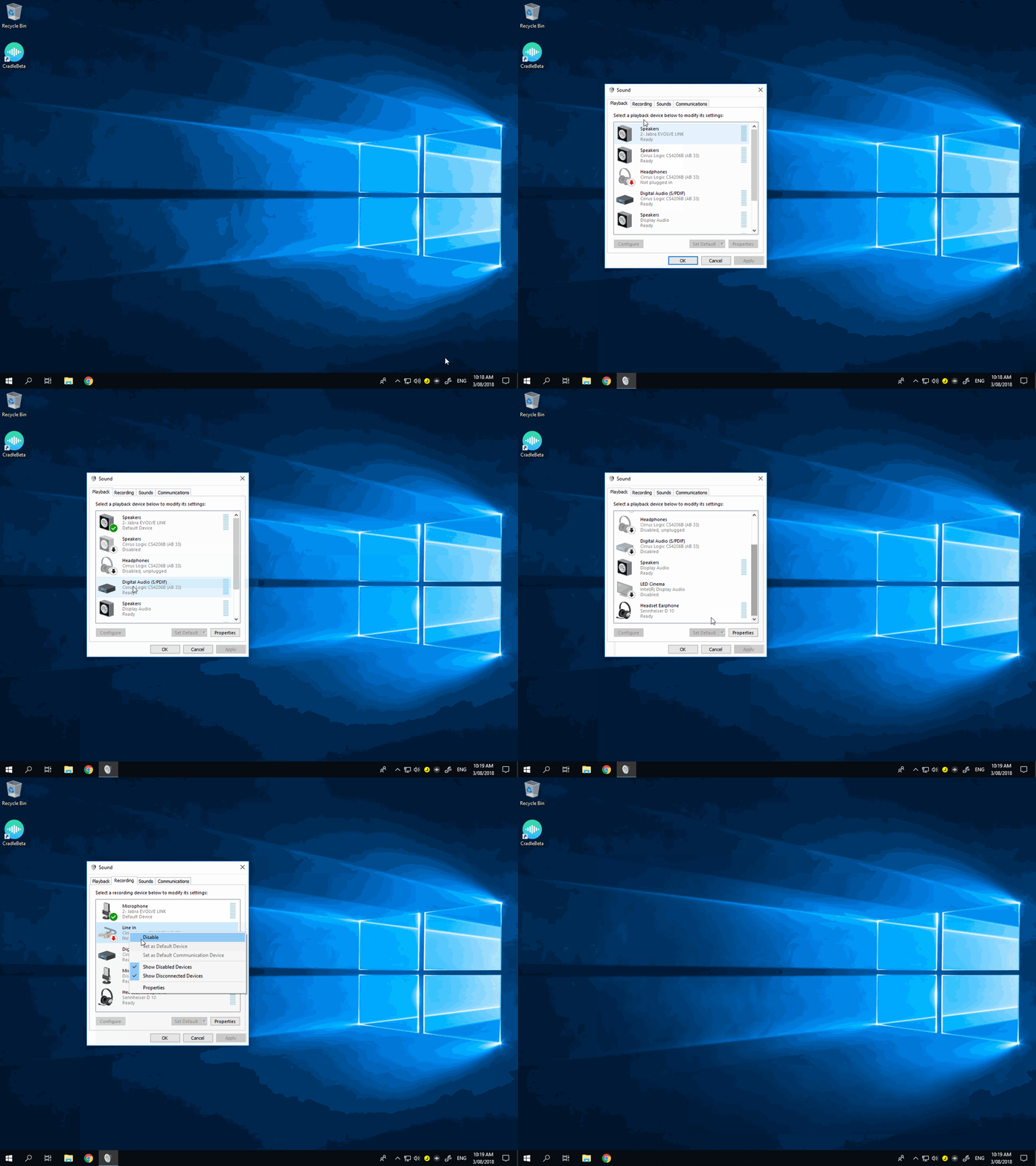
- Right-click the speaker icon in the Windows taskbar (near the clock).
- Click Sounds.
- On the Playback tab, right-click any blank space and tick Show Disabled Devices and Show Disconnected Devices.
- Find the device you want for call audio (your headset), right-click it, and choose Set as Default Device.
- Find the device you want for the ringtone (often your laptop speakers), right-click it, and choose Set as Default Communication Device. (Yes, the naming is backwards. "Communication Device" is treated by Cradle as the ringtone in some configurations.)
- Right-click every other playback device and choose Disable. You're aiming for a list with two or three enabled devices: your headset, your laptop speakers if you use them for ringing, and any other device you actually want.
- Switch to the Recording tab and repeat the same process for microphones. Disable everything except your headset's microphone.
- Click OK.
Confirm the change in Cradle
- Open Cradle's audio settings.
- Confirm your input, output, and ringtone devices match what you set as default in Windows.
- Make a test call.
If a device you'd just disabled in Windows is still showing in Cradle, restart Cradle once. The device list refreshes on app launch.
A note on the Communications dropdown in Windows
In Sound → Communications, Windows offers four behaviours when you make or receive a call: Mute all other sounds, Reduce the volume of other sounds by 80% / 50%, or Do nothing.
We recommend Do nothing. The other options cause Windows to duck the volume of music or other apps when Cradle starts a call, which can sound like Cradle has broken your audio when really it hasn't.
What you should see
- Only the devices you actually use appear in Cradle's audio settings.
- Calls always come through the headset you chose; the ring always comes through the device you chose.
- Closing and reopening Cradle, or unplugging and replugging the dongle, picks up the same device every time.
If audio still moves around
- The device list keeps changing. A USB dongle that's intermittently dropping its connection looks to Windows like a new device every time it reconnects. Try a different USB port, preferably on the laptop itself rather than a hub.
- Cradle won't stick to a non-Jabra device. Cradle defaults to a connected Jabra USB dongle if one is present, even if you've picked a different device in Cradle. Unplug the dongle if you want to use a different headset.
- Bluetooth headset still sounds robotic. That's a Bluetooth airtime problem, not a device-list problem. See Bluetooth headsets and Audio cuts out on Windows with a Bluetooth headset.
Related
- Choosing your microphone and speaker
- Setting up your Jabra headset
- Audio and headset issues on Windows
- Bluetooth headsets