




Mobile apps
How do I control call recording on my iOS device?
Once call recording has been turned on for your organisation, you can control it within the Cradle app on your iOS device.
There are a few ways that calls can be recorded within Cradle:
- Inbound calls recorded automatically through a route connected to one of your numbers.
- Outbound calls recorded automatically for all of your outbound calls.
- Any calls recorded manually.
Automatic call recording is set up by the person who handles the admin of Cradle for your organisation. You then have control to pause and start the recording in the case of sensitive information or if the person you're speaking with requests that the call not be recorded.
How to control the recording
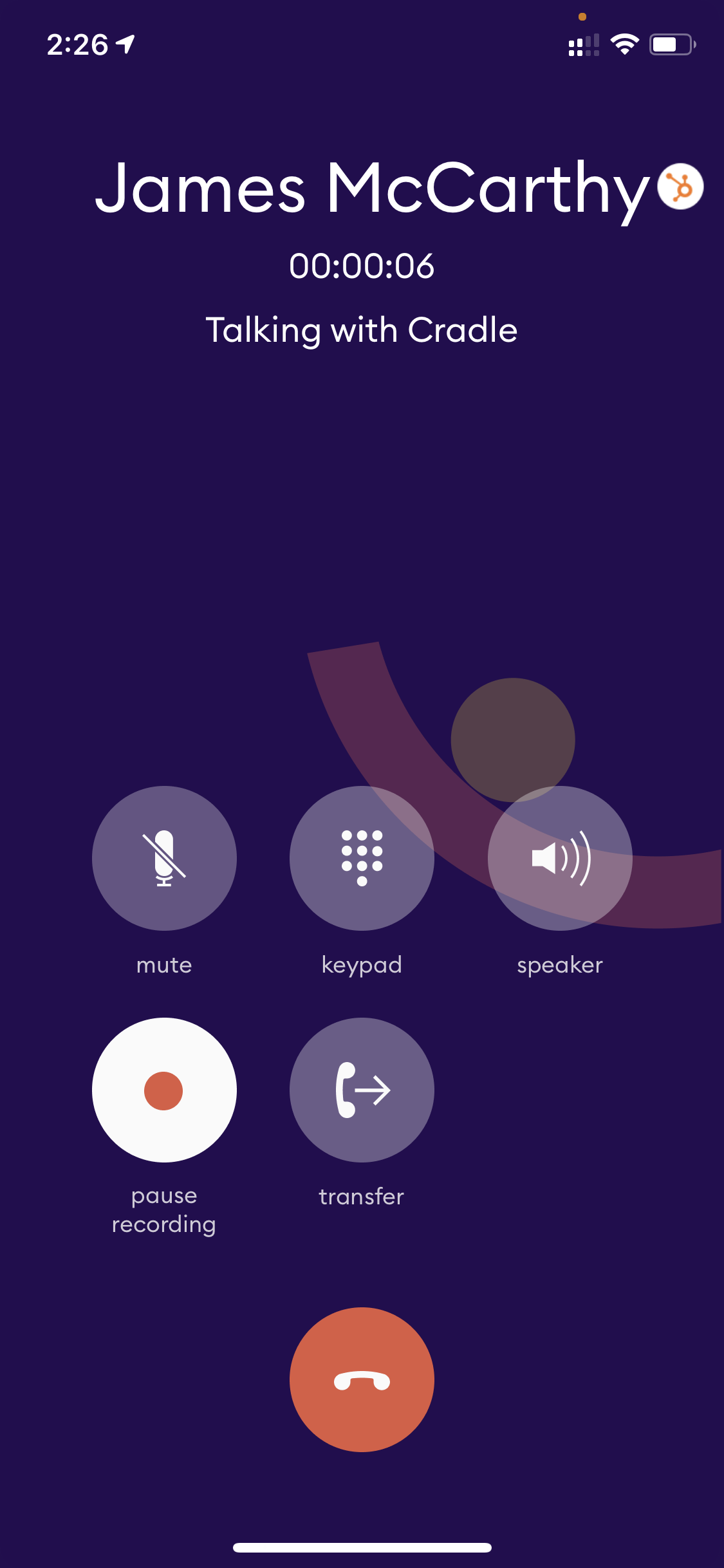
During a call, you will have the record button. If the call recording has been started automatically, it will already be active as shown in the image above. You can just tap this to pause the recording.
You can then tap the button once again to resume the recording. This will playback in the recording where you previously left off.
If the button isn't already active, this means that the call isn't being automatically recorded. You can then manually tap it to start the recording.
It's a good idea to let the person you're on the phone with know that their call is being recorded.
How to listen to the recording
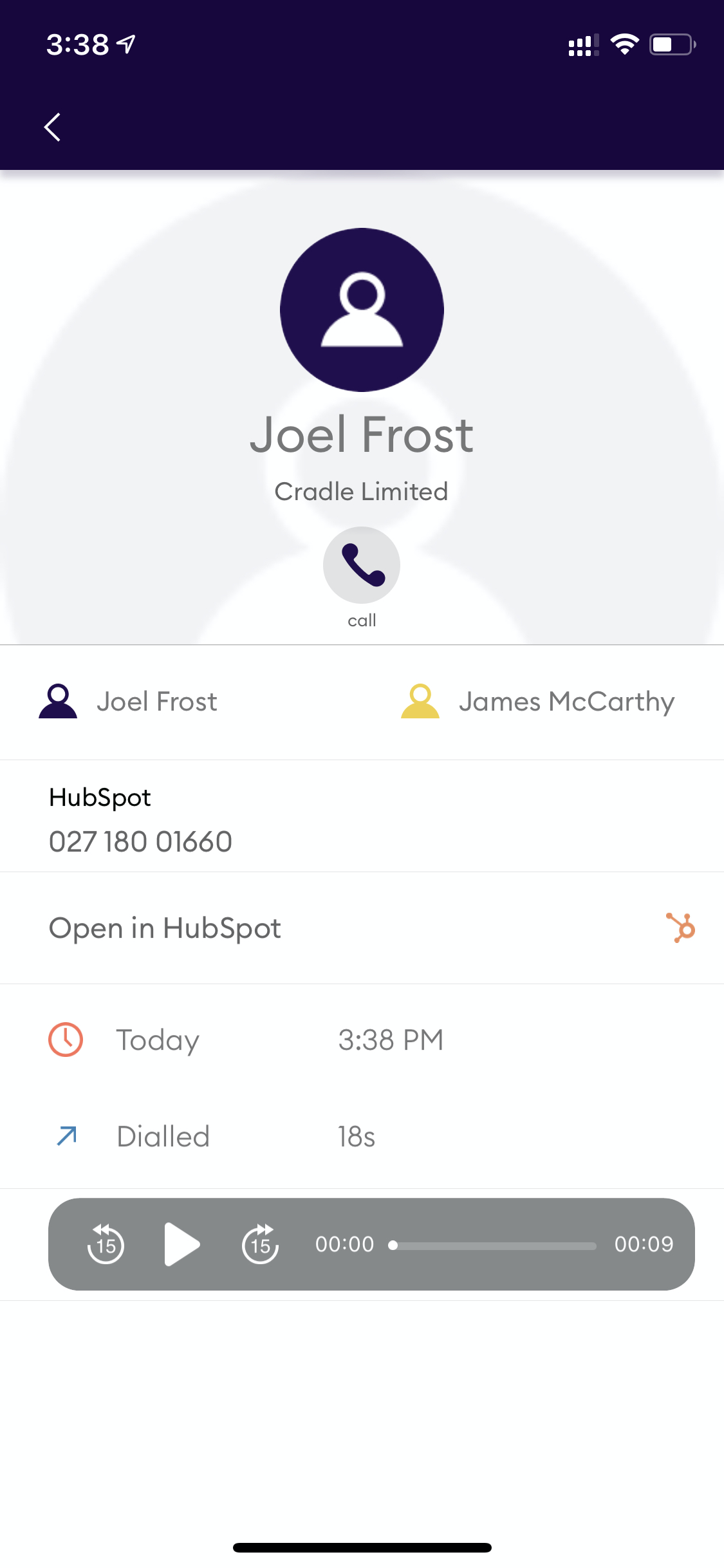
The call recording is saved in your call log for 28 days following the call. You can access it by tapping on the info button next to the call in your call log and it will show call information along with the player.
Longer retention is available on paid subscription changes. Talk to us if your firm needs a longer window kept on the recording itself.