



Desktop app
Choosing your microphone and speaker
How to pick your microphone, speaker, and ringtone device in Cradle so calls sound right and you can always hear an incoming call.
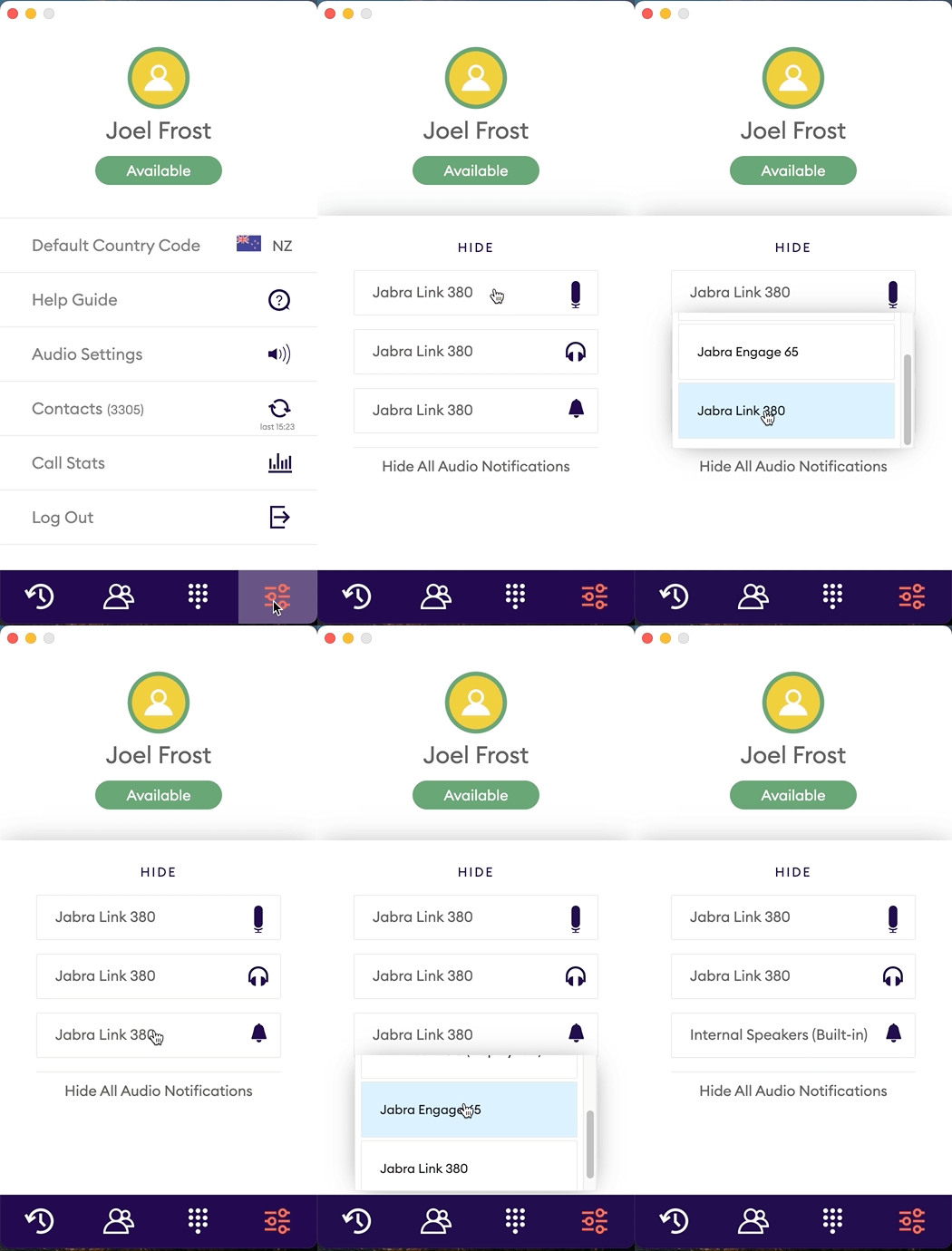
Cradle separates three audio choices: the microphone (what the caller hears), the speaker (what you hear during a call), and the ringtone device (what plays your incoming-call sound). You can set each to a different device, which is useful. Most people want call audio in their headset, but the ringtone through the laptop speakers so they hear it when the headset is off their head.
Before you start
- A wired USB headset, a USB-dongle Bluetooth headset, or a DECT headset, plus your laptop's built-in speakers. We don't recommend pairing a Bluetooth headset directly to your laptop's built-in Bluetooth. See Bluetooth headsets for why.
- If you use a Jabra Bluetooth headset, plug in its USB dongle and confirm the dongle's LED is blue or purple before opening Cradle.
Open Audio Settings
The audio device picker lives in Audio Settings. How to open it depends on whether you're on a call.
- Not on a call: click the speaker icon in the top right of the Cradle desktop app.
- On a call: click the headset icon in the lower left of the in-call screen.
Either path opens the same panel.
Steps
- Open Audio Settings by one of the two paths above.
- Pick a device in each of the three menus:
- Microphone (input). The headset's microphone.
- Speaker (output). The headset's speaker.
- Ringtone. Your laptop's built-in speakers, so you hear incoming calls even when the headset is off.
- Make or take a test call. The microphone meter should move as you speak.
If you unplug or change a device after this, open Audio Settings again and pick the device fresh. Cradle won't always re-select the previous device for you.
Volume is a Windows / macOS / Linux setting, not a Cradle one
Cradle doesn't have its own volume control. There's no Cradle volume slider, no per-app volume in the Cradle desktop app. Volume is controlled by your operating system:
- Windows: the Volume Mixer (right-click the speaker icon in the taskbar) shows per-app output device and volume. The system volume slider in the taskbar controls overall output.
- macOS: the menu-bar volume slider, or System Settings → Sound.
- Linux: your distro's sound applet, or
pavucontrol.
That means you adjust how loud calls sound the same way you adjust how loud anything else on your computer sounds.
A note on the ringtone device
Setting the ringtone to your laptop speakers (rather than the headset) has one nice side effect: you hear the ring whether the headset is on your head or not. The ring volume is whatever your system speaker volume is set to.
If you'd rather have everything in the headset, set the ringtone device to the headset too. It's the right choice for hot-desk and shared environments where laptop speakers would be disruptive.
Per-OS notes
Cradle picks devices by their OS-level name, so the device list in Cradle is whatever Windows, macOS, or Linux is exposing.
Windows
- Cradle's device list matches what you see in Settings → System → Sound. If a device is disabled or hidden at the Windows level, Cradle won't see it.
- For best results, set the same device as Windows' default for Communications in Settings → System → Sound → More sound settings. That stops Windows from shifting audio to a different device mid-call.
- A longer Windows-specific guide is at Windows audio setting recommendations.
macOS
- Cradle's device list matches System Settings → Sound (macOS 13 and later) or System Preferences → Sound on earlier versions.
- The first time you choose a microphone, macOS asks you to grant Cradle microphone access. If you decline, calls will end immediately after pickup. See Microphone permission on macOS.
- Built-in AirPods microphones produce poor call audio. See Headset options for why.
Linux
- Cradle's device list comes from PipeWire (or PulseAudio on older distros).
- If a device is missing from Cradle but present in your distro's sound settings, open
pavucontroland confirm the device is unmuted and routed to the application. - Some distros block microphone access by default. See Microphone permission on Linux.
What you should see
- Speaking into the microphone moves the meter in Audio Settings.
- The next incoming call rings through your chosen ringtone device.
- The call audio plays through the speaker you picked and the other side hears the microphone you picked.
If it doesn't work
- The device isn't in the list. Cradle reads from the OS. If your OS doesn't list the device, Cradle won't either. Check the device is connected, powered on, and not muted in your OS sound settings.
- The call ends straight after pickup. That's almost always a microphone-permission problem. See the per-OS articles above.
- The microphone meter doesn't move. Try a different microphone in the list. If only one option appears, the headset may need its USB dongle (for Bluetooth models) or a cable check (for wired models).
- Audio is robotic or choppy. Bluetooth conflict. See Bluetooth headsets and the platform-specific audio troubleshooting articles.
Related
- Headset options
- Bluetooth headsets
- Setting up your Jabra headset
- Windows audio setting recommendations
- Audio and headset issues on Windows
- Audio issues on macOS
- Audio issues on Linux