



Desktop app
Setting up your Jabra headset
Configure your Jabra headset with Jabra Direct so it works well with Cradle.
A new Jabra headset is set up sensibly enough out of the box, but a few tweaks in Jabra Direct make it noticeably better for Cradle calls. The main one is hearing-protection sensitivity. The default is set high enough that it can clip the start of louder calls.
What you'll need
- A Jabra headset with its USB dongle (if it's a Bluetooth model).
- A Windows or Mac computer with Jabra Direct installed. It's a free download from Jabra.
Configure the headset
- Plug the headset's dongle into your computer. If it's a wired headset, plug it in directly.
- Open Jabra Direct. Your headset should appear in the device list at the bottom.
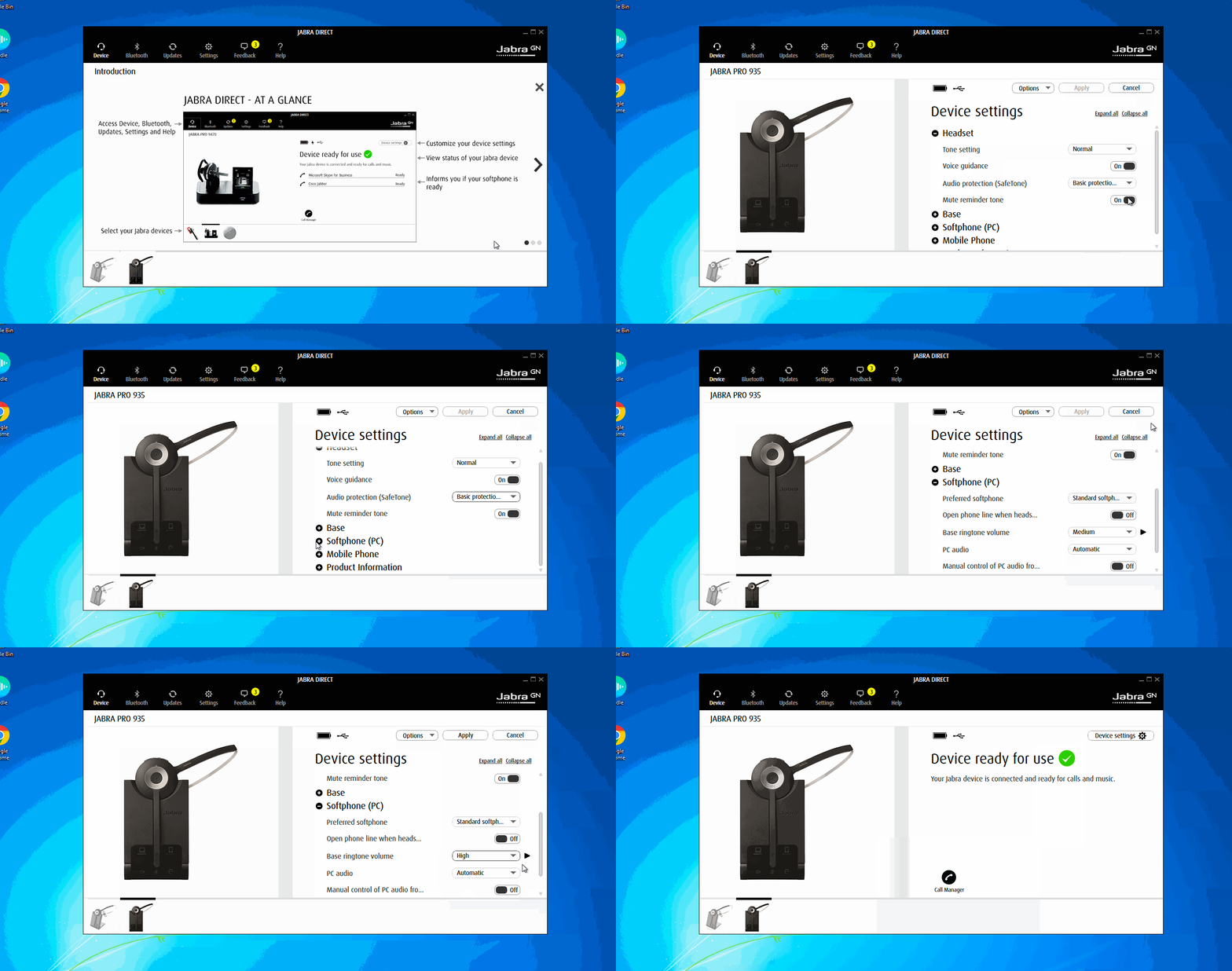
- Click the headset and open Device settings.
- Under the Headset section, set Audio Protection (SafeTone) to Basic protection. The default (full protection) is sensitive enough that some calls will sound clipped or quiet. Basic gives you the same warnings about sustained loud audio without limiting normal call volume.
- Have a look through the other settings while you're here. Useful ones:
- Ringtone in headset: switch off if you find the headset ringing duplicates your laptop's ring.
- Motion detection and Auto sleep: switch off if you find audio cuts when you move your head.
- Headset name: set this in shared offices, so you don't accidentally connect to a teammate's dongle.
- Click Apply. The headset may restart briefly.
- If you have a wireless headset and you sometimes plug it into your computer by its USB cable (to charge it, for example) while still using its dongle, turn off audio over the cable. Without this, the headset can keep its call audio on the cable after a call, and your next calls connect with no sound either way. Select the headset, click Settings, open the Softphone tab, turn off Audio over USB cable, and click Save. The headset restarts. From then on the cable only charges and updates the headset, and call audio always goes through the dongle. (Cradle 26.10.3 and later also notice this setup and free a stuck headset after a call, but the setting stops it happening at all.)
- Close Jabra Direct. The settings are saved on the headset itself, so you don't need to keep the app running.
The headset panel in Cradle
With a Jabra headset connected, the Cradle desktop app shows a headset panel under Settings, Audio, Headset. It tells you, without opening any other software:
- the headset's battery level and firmware version
- how it's connected (cable, USB adapter, or wireless)
- the wireless link quality, so you can see whether a patchy call was the headset's radio or something else
A headset that connects through a USB adapter shows as in use whenever the adapter is your selected audio device.
Wireless Jabra headsets get two extra settings, when the headset and its Jabra USB adapter support them:
- Wireless range: Normal, Low, Very low or Ultra low. Lower it if several Jabra headsets share your room.
- Call audio bandwidth: Wideband or Narrowband.
After a call that sounded bad on a wireless Jabra, Cradle may offer the shorter range once. It never changes the range by itself.
If your headset disconnects and reconnects, the ringtone and call audio follow it back, so you don't need to pick it again in audio settings.
Keep firmware up to date
Jabra Direct also tells you when there's a firmware update for either the headset or its dongle. Take them when offered. You can check which firmware you're on from Cradle's headset panel. Out-of-date firmware is the cause of most of the obscure audio bugs we see in support.
A note on the Jabra Handset 450
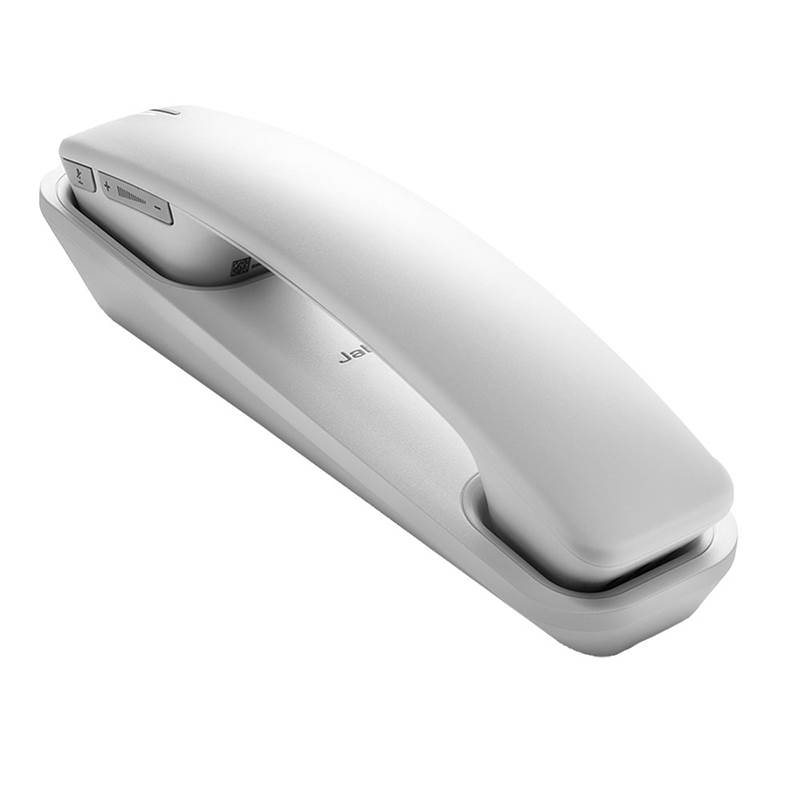
The Jabra Handset 450 is a corded handset that works well with Cradle, but on Windows it needs both Cradle and Windows pointed at it explicitly.
In Cradle:
- Open audio settings.
- Set the input and output devices to Jabra Handset 450.
In Windows:
- Open Settings → System → Sound.
- Set the output and input devices to Jabra Handset 450, and make sure those stay as the system default.