



Desktop app
How does presence work?
Presence tells Cradle and your teammates whether you're ready to take calls. This is the concept landing page, it links out to how to change your status, wrap-up time, and what to do when calls aren't reaching you.
Presence is your phone status, it tells Cradle and your teammates whether you're free to take a call. It's how Cradle decides where an incoming call should go, and it's how your team can see at a glance who's around for a transfer or a quick chat.
The presence states
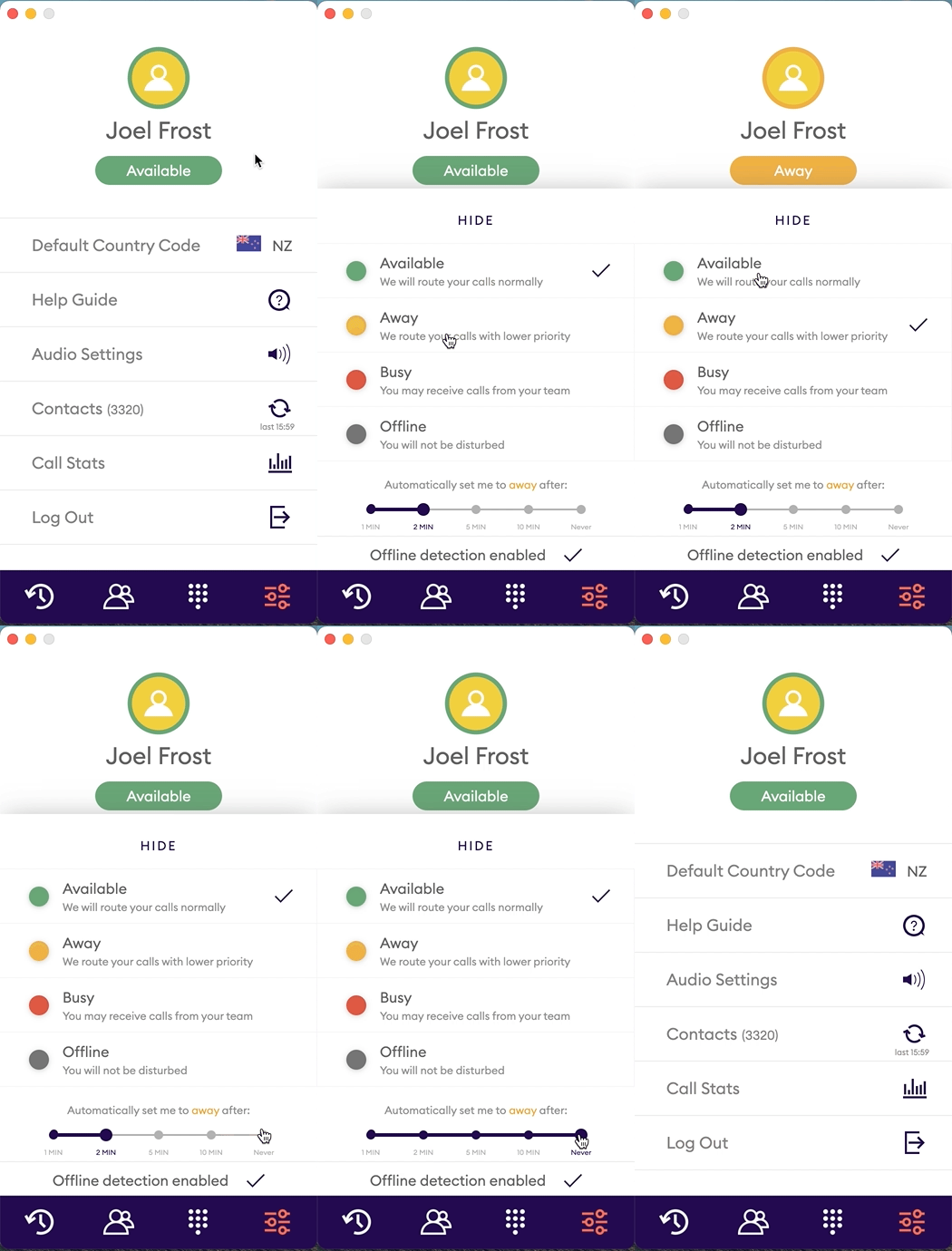
Cradle uses seven presence states. Some are ones you set yourself; the others are set automatically.
- Available, you're ready to make and receive calls. Cradle will ring you in the normal order set by your admin.
- Away, you've stepped away briefly. Teammates can still transfer to you and call you directly, but group calls ring you with the next box down (for example with Call second instead of Call first).
- Idle, same effect as Away, but set for you automatically after a period of no activity on your computer. Useful for short breaks. Your admin can set a group to treat Idle as Available, so idle people ring in their usual box.
Out of office (set by smart presence on the Cradle mobile app) shows as Away and works like Idle.
- Busy, you don't want to be disturbed. Teammates can still see you and transfer to you, but Cradle won't ring you for incoming calls.
- On a call, set automatically while you're on a Cradle call. Same effect as Busy, you won't get a second call rung through on top of the one you're already on.
- Offline (manual), you've clocked out for the day. Calls won't ring for you. Teammates can still attempt a transfer or a direct call, but it'll fail.
- Offline, set automatically when you quit Cradle, lose your internet connection, or shut down your computer.
How presence affects whether your phone rings
Three states keep calls coming: Available, Away, and Idle. With Available, you're first in line per your admin's routing rules. With Away or Idle, Cradle still sends you group calls, but with the next box down, so the people in your box get them first.
Four states stop calls reaching you: Busy, On a call, Offline (manual), and Offline. Teammates can still see you and try to transfer, but Cradle won't ring you for new incoming calls.
If calls aren't reaching you when you expect them to, presence is the first thing to check. See Why am I not receiving calls?.
Where you see your presence
Your current presence shows up in several places in the desktop app:
- The presence dot in the top right of the app, immediately to the left of the sound settings icon. New in v26.
- On the settings screen in the Cradle desktop app, next to your name.
- In the Cradle icon in your system tray (Windows) or menu bar (macOS).
- On the team screen, where your teammates can see it.
- In the transfer menu when a teammate is about to transfer a call to you.
Where your teammates see it
Your presence reads the same wherever you appear in a teammate's app: the team list under Contacts, your contact record, the header of a chat with you, your rows in their call log and in Messages, your row when they transfer a call or add someone to a call, and under your name while they're on a call with you.
If you set Busy, Away or Offline for a length of time, they see the time as well, for example "Busy until 3:00pm". If you added a reason, they see that too. Where there's only room for one line, the time shows and the reason is left out.
Once the time has passed, the time and the reason disappear together, so nobody reads an old reason under someone who's back at their desk. See Setting your status for how to set a time and a reason.
How to change it
Three ways to change your presence:
- Click the presence dot in the top right of the app (v26 and later) and pick from the menu. This is the fastest path.
- Open the Cradle desktop app, go to the settings screen, and click on your name.
- Or click the Cradle icon in your system tray (Windows) / menu bar (macOS) and pick from the menu.
The same screen has settings for automatic presence, when Cradle should switch you to Idle, and when to set you Offline. See Setting your status for the detail.
Mobile mirrors desktop
Presence on the Cradle mobile apps follows what's set on your computer. If you're Available on your desktop, you're Available on your mobile too. Changing your presence on your computer changes it on your mobile.
Your mobile won't automatically set you to Idle or Offline, quitting the mobile app doesn't change your presence. If you only use Cradle on mobile, you'll need to set your presence manually from the mobile app's settings page.
If you're using both, the rule is simple: the desktop is the source of truth, the mobile follows along. The one exception is On a call, Cradle sets that automatically on whichever device you're calling from.
Your phone's Do Not Disturb is separate from Cradle presence
Your mobile's operating system has its own Do Not Disturb mode (sometimes called Focus, Silent, or similar). That's controlled by your phone settings, not by Cradle. If your phone is in DND while you have the Cradle mobile app installed, the OS can decline incoming Cradle calls before the app gets a chance to ring, even when your Cradle presence says Available. If calls aren't reaching you on mobile, check your phone's DND or Focus settings as well as your Cradle presence.
The best setup
For nearly everyone, the defaults are right. The two habits worth building are:
- Set yourself to Busy or Away manually when you're heading into a meeting or stepping out, so teammates know your availability.
- Quit Cradle on your computer when you finish for the day. That sets you Offline and stops calls coming through after hours. When you open the app again, you're set to Available automatically.
The automatic settings are there to catch you when you forget.