




Desktop app
Click to call using Cradle
Click a phone number link in Chrome or Edge and have Cradle dial it for you.
If a phone number on a web page is wrapped in a tel: link, clicking it can launch Cradle and dial the number for you. With one extra setting in your browser, you can skip the "Open Cradle?" prompt and have it dial straight away.
Where this is useful
HubSpot
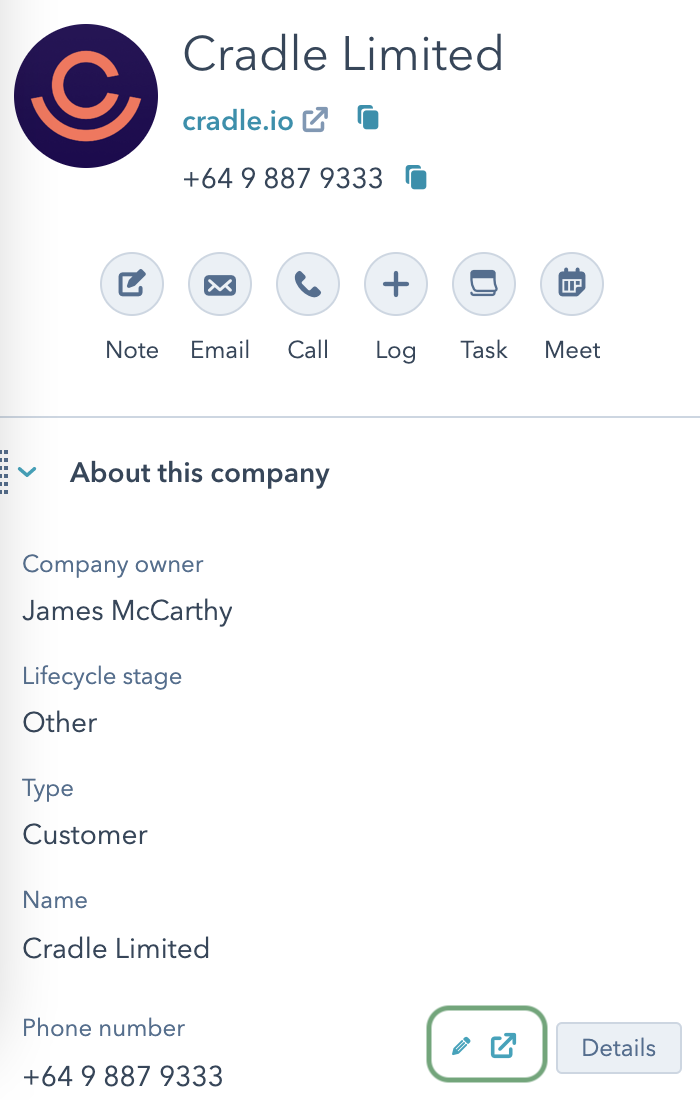
Click the phone icon next to a contact's number, or click a number inside a call engagement in the activity timeline. Cradle dials.
Customer websites
Most businesses link their phone numbers in headers, footers, and "contact us" pages. Click and see if Cradle picks it up.
Other CRMs
If your CRM wraps phone numbers in tel: links, the click-to-call flow will work there too.
What happens when you click
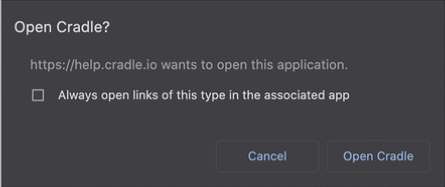
A small "Open Cradle?" prompt appears. Click Open Cradle (or whatever your browser labels it) and the call starts.
Skipping the prompt every time
The "Open Cradle?" prompt has an Always allow checkbox in most modern Chrome and Edge versions. Tick it the first time you see the prompt and you won't be asked again on that site.
If you don't see an Always allow option, you can add it manually.
macOS
Open Terminal and run:
defaults write com.google.Chrome ExternalProtocolDialogShowAlwaysOpenCheckbox -bool true
Restart Chrome, click any tel: link, and tick the new checkbox.
Windows
Warning
Editing the Windows registry can have side effects. Only proceed if you're comfortable with regedit.
Open the Registry Editor (type regedit in the Start menu).
Go to
HKEY_LOCAL_MACHINE\SOFTWARE\Policies, then create the keysGoogleandChromeso the full path isHKEY_LOCAL_MACHINE\SOFTWARE\Policies\Google\Chrome.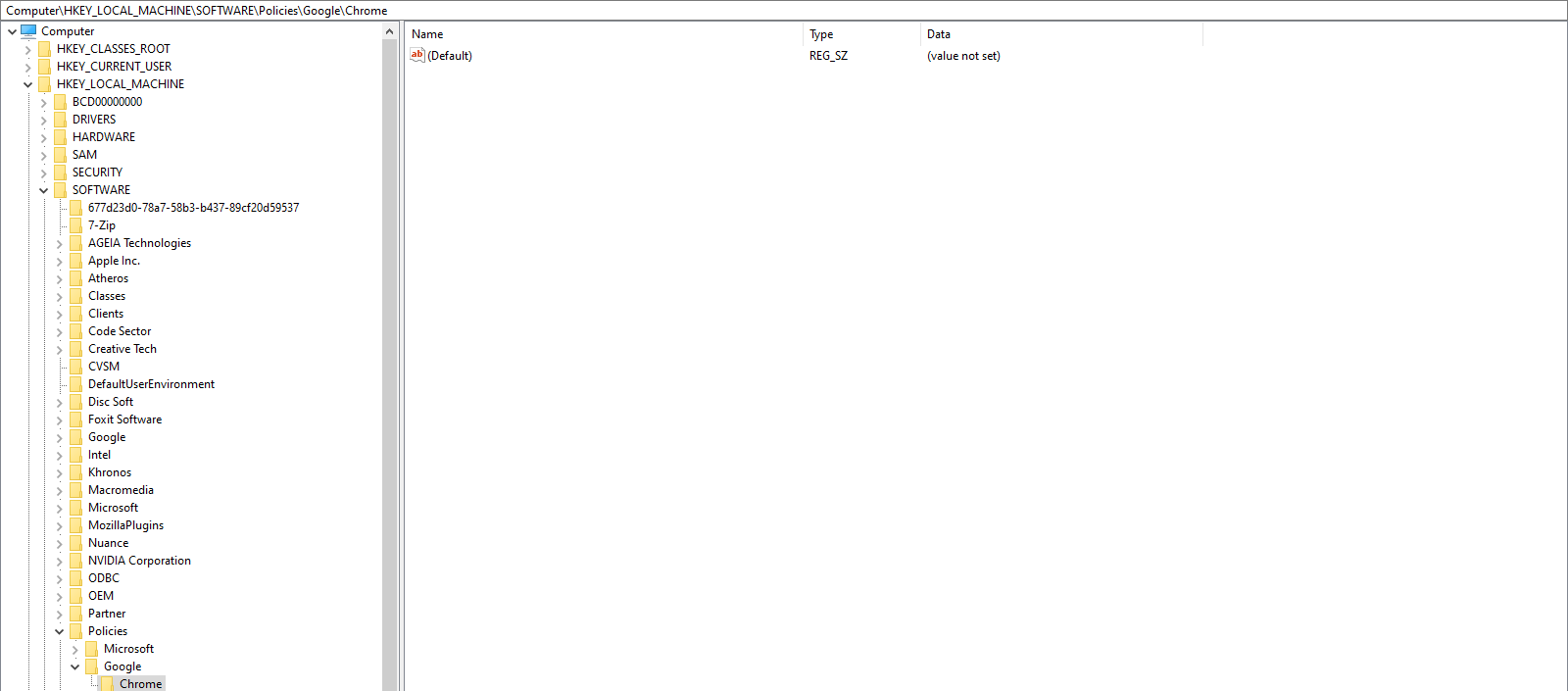
Inside the new
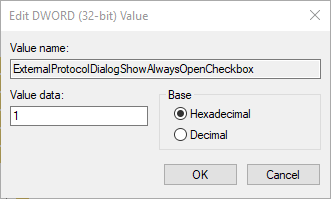
Chromekey, right-click and add a newREG_DWORDvalue calledExternalProtocolDialogShowAlwaysOpenCheckbox.
Right-click the new value, choose Modify, and set the hexadecimal data to
1.
Close the Registry Editor.
Restart Chrome, click a tel: link, and tick the Always allow checkbox the first time it appears.
Note
The same registry value works for Microsoft Edge. Just add it under the Edge path instead of the Chrome path.